Search
As of October, 2016, Embarcadero is offering a free release
of Delphi (Delphi
10.1 Berlin Starter Edition ). There
are a few restrictions, but it is a welcome step toward making
more programmers aware of the joys of Delphi. They do say
"Offer may be withdrawn at any time", so don't delay if you want
to check it out. Please use the
feedback link to let
me know if the link stops working.
Support DFF - Shop
If you shop at Amazon anyway, consider
using this link.
We receive a few cents from each
purchase. Thanks
Support DFF - Donate
If you benefit from the website, in terms of
knowledge, entertainment value, or something otherwise useful,
consider making a donation via PayPal to help defray the
costs. (No PayPal account necessary to donate via credit
card.) Transaction is secure.
Mensa®
Daily Puzzlers
For over 15 years
Mensa Page-A-Day calendars have provided several puzzles a year
for my programming pleasure. Coding "solvers" is most fun,
but many programs also allow user solving, convenient for "fill
in the blanks" type. Below are Amazon links to the
two most recent years.
Mensa®
365 Puzzlers Calendar 2017
Mensa®
365 Puzzlers Calendar 2018

(Hint: If you can
wait, current year calendars are usually on sale in January.)
Contact
Feedback:
Send an
e-mail with your comments about this program (or anything else).
|
| |
Problem Description
Here's is a drag/drop demo program
exploring some of the concepts and techniques for dragging images.
Background & Techniques
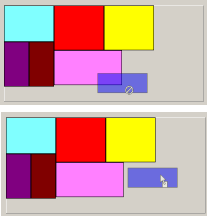
I recently decided to create a "human intelligence" version of our
Cutlist program
which will allow users to drag required parts outlines onto
available supply pieces as an alternative to the current program's
search and place algorithm. Once a project has more than 9
or 10 pieces, the number of arrangements to check makes finding an
optimal solution through brute force search unlikely. And,
as a user pointed out recently, hardwood is quite expensive
and there may be knots other defects in the supply pieces that the
user would want to manually exclude from consideration. I
decided to master some of the general drag/drop techniques
preliminary to tackling the complete Cutlist project.
Scroll boxes
In addition to the drag drop problem, I wanted two
separate scroll boxes to be able to handle lots of "pieces" (Tshape
controls in this demo) on the left and and supply parts (Tpanels)
on the right. For the rest of this discussion "shape"
and "piece" will be used interchangeably. The drag/drop
event exits for both shapes and panels are set dynamically at
FormCreate time. Even though they could have been
set using the object inspector here, the real application will be
creating the parts from project description files. At
initialization time we also place the shapes in a TObjectList
named PieceList. The piece list will help us check
for overlaps with other pieces with the same parent when we drop a
piece.
Dropping shapes
When shapes are dropped on the panels, we need to make sure
that they do not overlap each other. To check this, the
shapes in a Piecelist change their parent property as they
are moved to new locations. A check must be made to ensure that
the piece being dropped does not overlap any other piece.
The Windows API function IntersectRect called from the
Overlaps function makes this an easy test.
The Snap function
Users may want to make the pieces abut each other as closely as
possible without overlapping. I added a "Snap" function to
accomplish this. If the Snapbox checkbox is checked, each
dropped panel will alternately move up and left until it can move
no further. Defining the tests to do this was the most
challenging (i.e. most fun) part of the project.
Dragging Images
The steps required to drag images seem more complicated one would
expect, but the "cookbook" approach works OK.
 | Drop a TImageList on the form. It is a
descendant of TDragImageList and has all we need for
defining the image (or images) to be displayed while dragging.
It would have been possible to define all of the images
initially and choose which one to display at start drag time.
I chose the approach of defining each drag image at start drag
time so there is always only a single image in the list. |
| Define a descendant of TDragObject to override
the default GetDragImages. The default function
returns nil so no drag image is displayed. Our GetDragImages
function just returns the address of our Dragimagelist to
tell Delphi that images are to be drawn as dragging takes place |
| An OnStartDrag event exit for the shape being dragged
has several tasks:
 | Clear the DragImageList, build a bitmap the size and
color of the shape being dragged and add it to the image list. |
| Call SetDragImage method of our DragImageList to
tell it to use image 0, the first (and only) image in the list.
|
| Create a TDragObject specifying the actual shape object
being dragged and return in the DragObject parameter of
the start drag procedure. The drag object becomes the
Source parameter for other dragover and dragdrop event
exits. It contains a property named Control which
points to the real shape being dragged. |
|
| Any control where you want the image to be displayed must
have csDisplayDragImage constant added to it's
ControlStyle property. Another job we perform in the
FormCreate method. |
| We need OnDragover event exits for shapes, scroll
boxes and panels to set the Accept parameter which
controls the dragcursor to be displayed determines if the
dragdrop exit needs to be taken. For the
shapes event, I do not allow a shape to be dropped on any event
except itself (i.e. when making a small adjustment to its
position). Scrollbox1, the home base for the shapes, and
the panels will accept only shapes that do not overlap other
shapes. The DragCursor property of the control
could also be changed here but by default Delphi uses the
crDrag cursor for accept condition and the crNoDrop
cursor if the piece cannot be dropped here. |
| Our Ondragdrop exits make a final check for no
overlap (probably unnecessary), change the parent of the piece
being dropped, change the coordinates to the new location, and
if we're dropping on a panel and the option is set,
"snaps" the shape up and left as far as possible without
overlapping other pieces already in place. |
Still a long ways from what we'll need for CutList-HI, but it's
a good start.
Running/Exploring the Program
Suggestions for Further Explorations
A few ideas I didn't figure out or get
around to implementing:
- Change the image of the shape being
dragged somehow to indicate that it is the source. e.g.
grayed or dotted outline, made invisible, etc.
- I wanted a second drag image to
distinguish where a drop was allowed or not allowed. The
drag cursor reflects that status, but I thought some other change
to the actual drag image would be good. However, it looks
like once a drag image is selected, it cannot be modified
during that drag operation.
- If a drop fails, the dragged image
just disappears. The original piece is still in place at
the drag start location, but it would be cool to animate the
movement of the drag image back to where it started.
|
Original Date: April 30, 2006 |
Modified:
May 15, 2018 |
|
|